Readme

Readme

First time setup 🥇

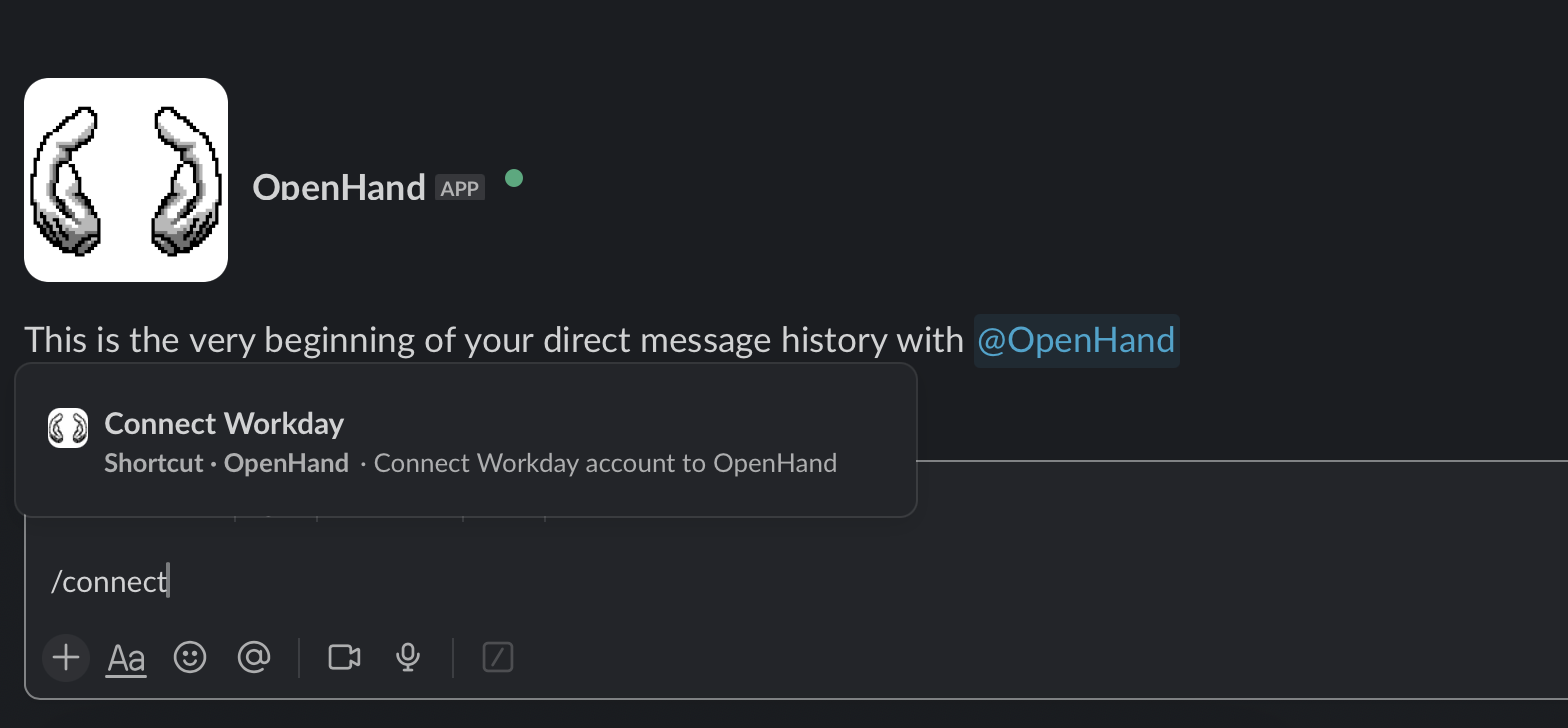
  1. To get started, you would first need to connect your Workday account to OpenHand. Type /connect and select Connect Workday.

Connect Workday

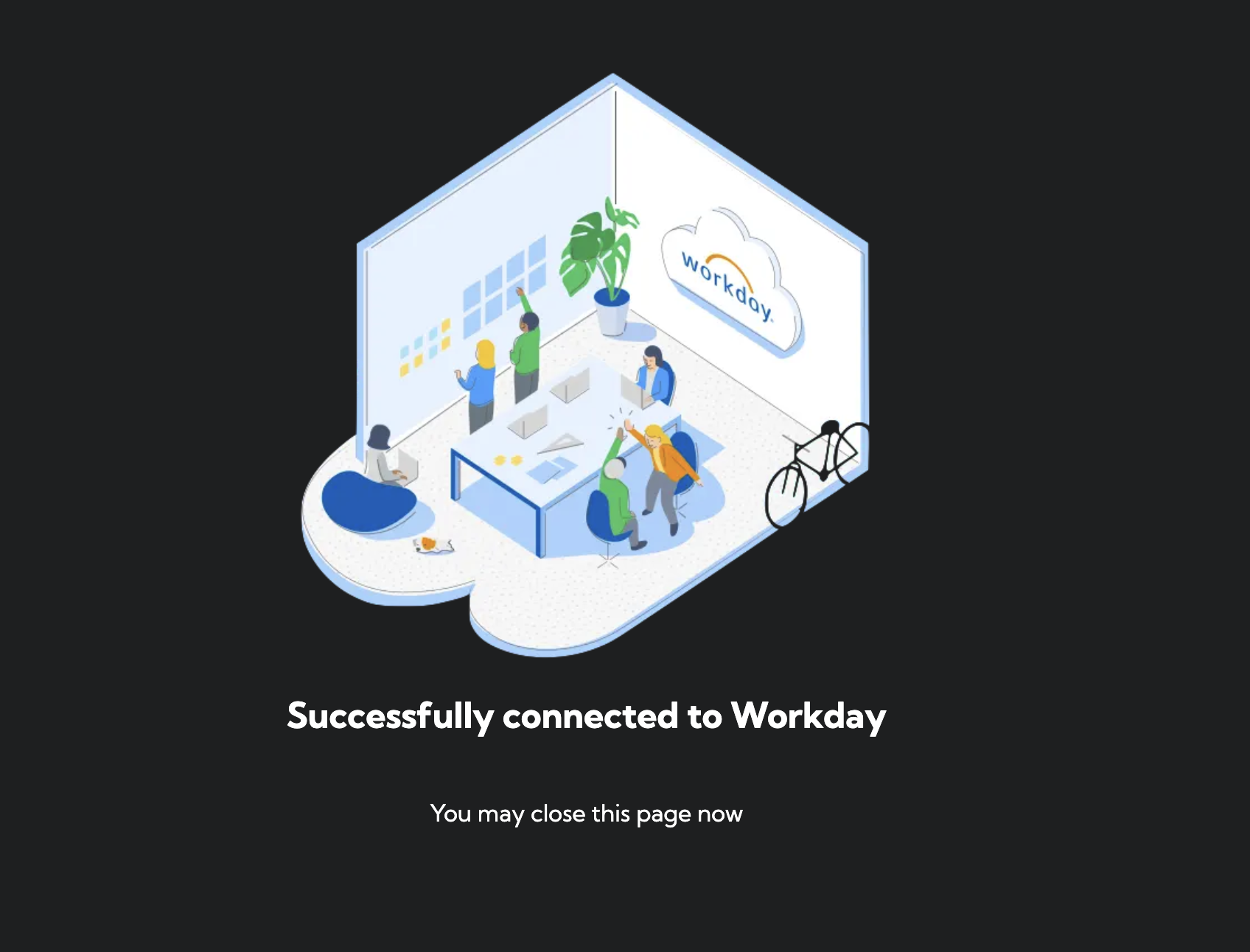
  1. Login to your Workday account and click Allow. You should see this success page once the connection is completed.

Connect Workday Success

Submit a claim 💰

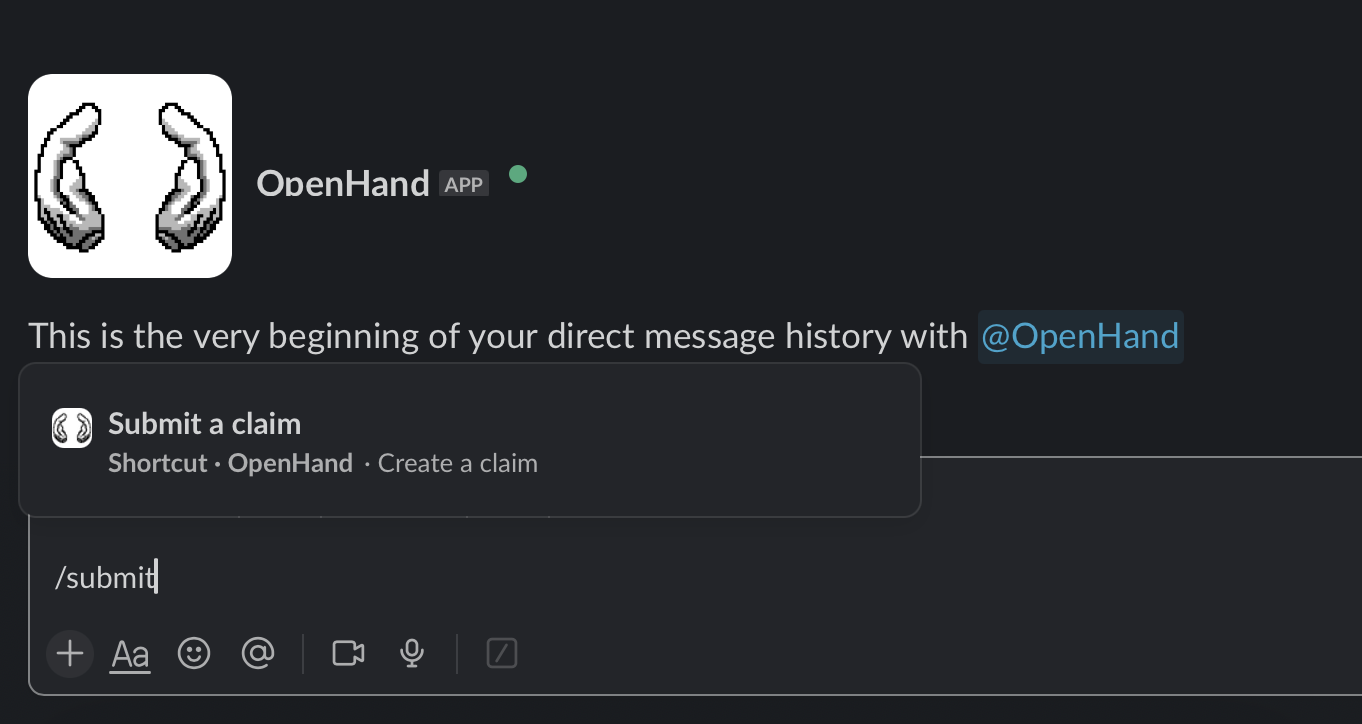
  1. Type /submit and select Submit a Claim.

Submit a Claim

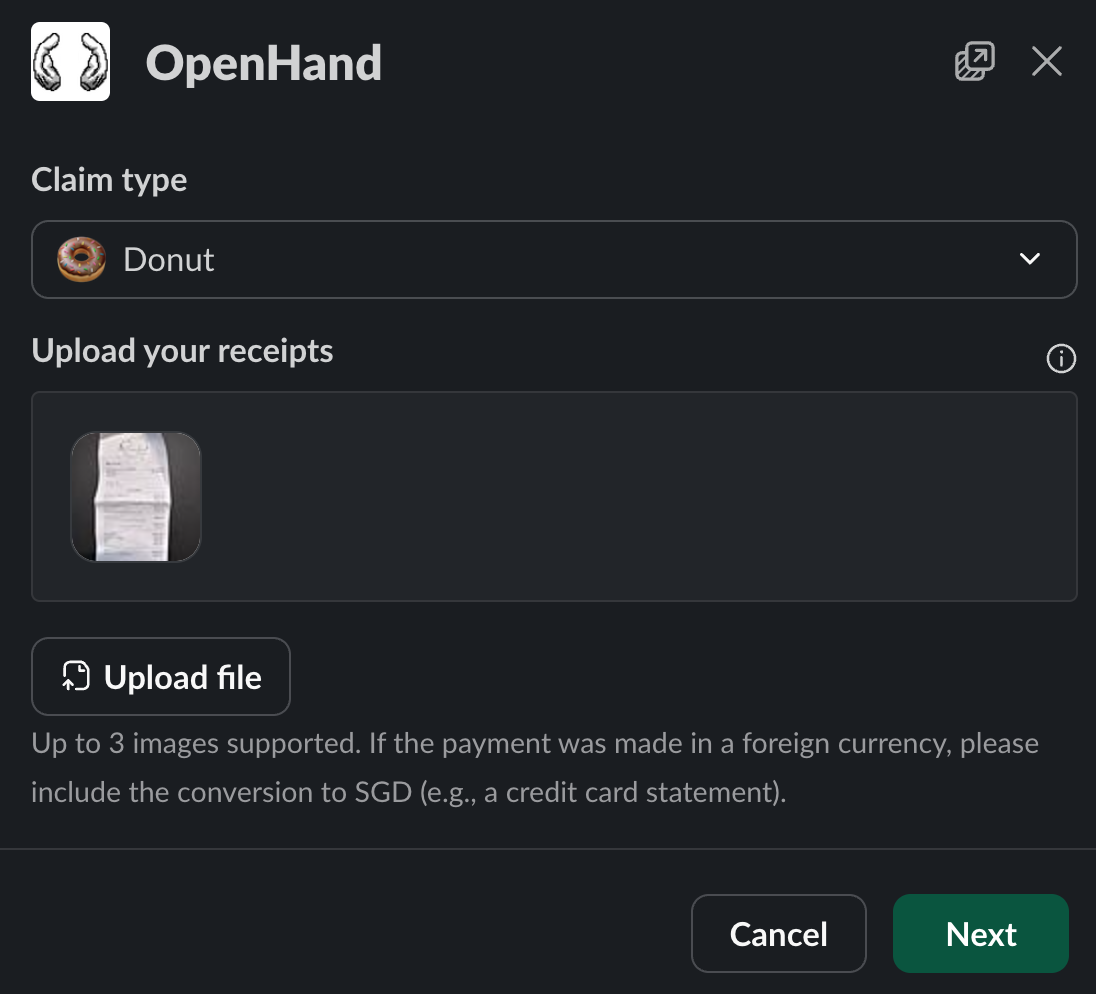
  1. Select the type of claim and upload your receipts (up to 3 images or pdfs).

Submit a Claim

  1. Enter your details in the form or click on Autofill ✨ to auto-populate the form.

Approving a claim ✅

  1. Make sure your Workday account is already connected.

  2. Click on Approve or Reject based on how you feel today 🙂🙃.

FAQ ❓

I can't approve the claim!

Check that you are connected to Workday. If the claim was just submitted, wait a few seconds before approving. Workday might still be doing some checks.

How do I check if I am connected?

Type /who am i and select Who Am I.

I want to modify my cost center or fund ID

Type /who am i and select Who Am I. You can modify your cost center or fund in the form.

I modified the claim on Workday after submission but it's not reflected on Slack

Don't do that. But if you did, type refresh in the claim thread to pull the latest info from Workday. This might be flakey so don't do it in the first place. Instead, cancel the claim and submit a new one.